

Expected: The image on the right fills the full height of the screen. This is how it looked before the recent update.
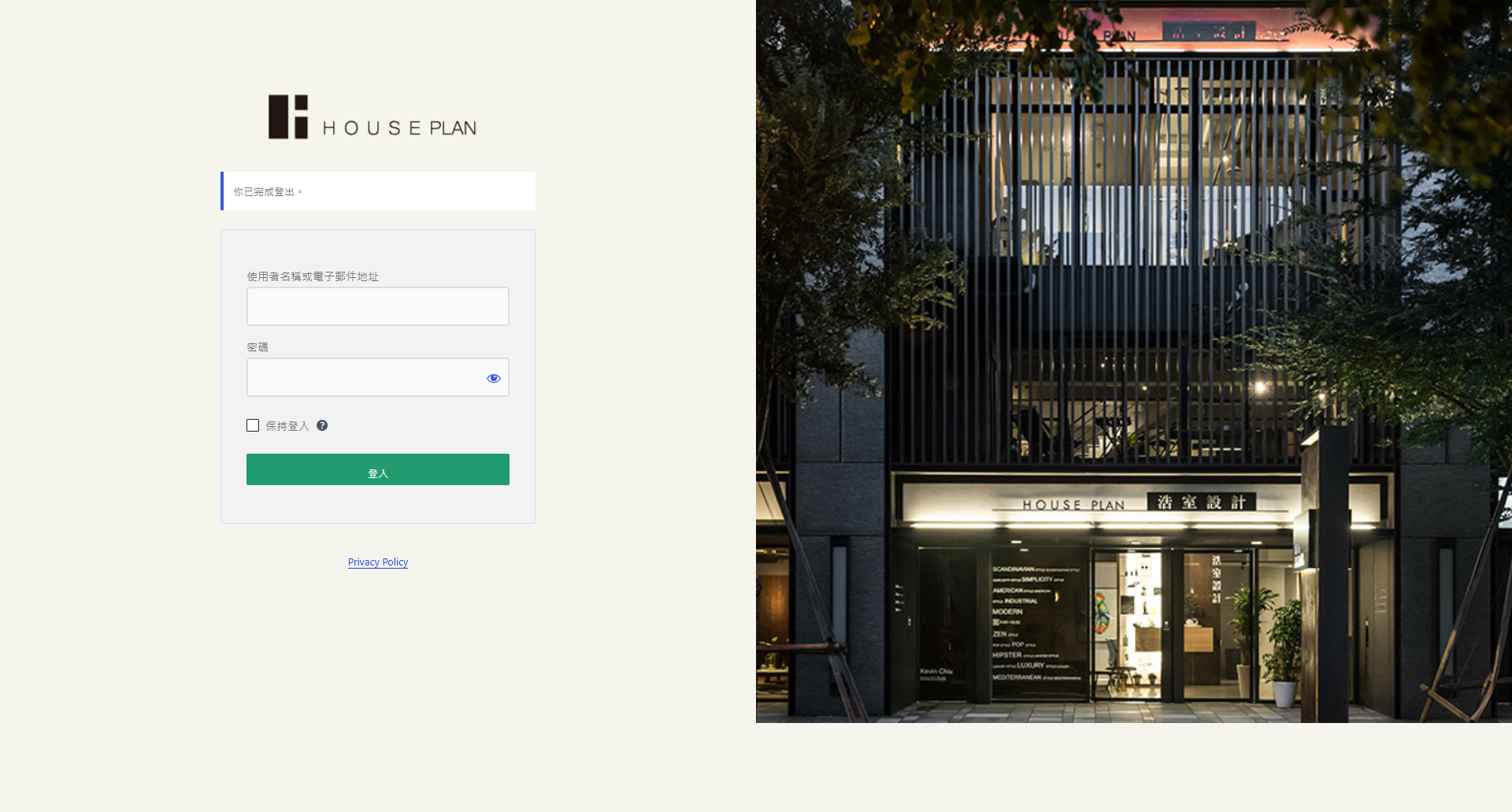
Actual: The image is only as tall as the login form. On a 1920×1031 screen it stops at 918px, leaving about 113px of blank background under the image at the bottom right.
Cause: The built-in wp-login--halfscreen-image.css has .login #bg-image { position: relative; height: 100%; width: 100% } and .login { display: grid; ... }, but nothing makes body.login or the image at least as tall as the viewport. The image’s height: 100% follows the grid, and the grid is only as tall as the form. I confirmed this in the browser: removing the body height shrinks the image from 1031px to 692px (the form height).
Fix: Inside the @media (min-width: 1100px) block, add min-height: 100vh to .login and to .login #bg-image. After this the image is 1031px tall again.
Alternatively, pin the image to the right half of the viewport: .login #bg-image { position: fixed; top: 0; right: 0; left: auto; width: 50%; height: 100vh; }. This does not depend on the form height at all.
Workaround for users: Switch Layout options to “Write your own CSS” and paste the built-in CSS with one of the changes above.
Uploaded files:
Hi,
Thanks for the detailed report and for working out the cause. You’re right: the Half Screen Image layout doesn’t force the login area or the image to full screen height, so on tall screens the image ends at the bottom of the form. I’ve confirmed this in the code and we’re working on a fix. It will also cover the Dark variant.
Until then, your workaround is the right one. Set Layout options to “Write your own CSS”, paste the built-in CSS, and add min-height: 100vh; to both .login and .login #bg-image inside the @media (min-width: 1100px) block.
Thanks again!
Marko